Wednesday, 1 May 2019

Daily News Roundup: Facebook’s Privacy Shift

Yesterday at the keynote for Facebook’s F8 developer conference, several key Facebook leaders took the stage to announce new additions to the product. But it was CEO Mark Zuckerberg’s statements that deserve the most attention.

It’s been a rough couple of years for Facebook. Scandal after scandal, leak after leak, and breach after breach, there hasn’t been a lot going for the network that wasn’t, well, bad. Facebook has compromised user data and broken user trust time and time again—and Zuck says that it’s time for a change.

The CEO took the stage yesterday with a backdrop that read “The future is private.” He discussed how the company had failed its users recently, but a privacy shift is coming. And not just in how Facebook works, but in how the company itself is being run. This effort means a dramatic change in Facebook and its apps, like Instagram and WhatsApp.

But they’re going to be fighting an uphill battle—he said as much on stage. “I get that a lot of people don’t think we’re serious about this,” he said, “I realize that we don’t have a good reputation on privacy, to put it lightly.” Results are what matter, though, and Facebook’s more privacy-focused shift is coming slowly. Rather than just pushing changes out the door, however, it appears that the company is taking a more systematic approach—something that is key to running a good, secure network.

Facebook’s approach appears to be simple, though multi-faceted. The network itself will be refocused, with groups and events playing a crucial role and the News Feed taking the backseat. Instagram, WhatsApp, and Messenger will be unified for a cross-platform, encrypted messaging system. We hope the real change comes on the backend, of course—where privacy truly lies. With the people who are supposed to be protecting our data.

Until that moment is proven, though, we can approach this “new Facebook” with healthy skepticism. The network has a lot to prove, and now’s the time it has to prove it.

In related news, here’s a look at all the other things Facebook announced yesterday.

  • Facebook Messenger is coming to Mac and Windows: Dedicated apps are on the way. [VentureBeat]
  • Facebook Dating expands: Facebook’s dating service is rolling out to 14 new countries, as well as getting a new “Secret Crush” feature to let users know who’s into them. [CNET]
  • Instagram is getting a redesigned camera: The camera is getting a remake, and dedicated shopping tags are coming to let users buy things directly from the app. [The Verge]
  • Instagram will start hiding like counts in Canada: More focus on content and less on popularity. I dig it. [Engadget]
  • Prime Video is coming to Facebook Portal: You’ll be able to watch movies on Portal soon. [The Streamable]
  • Portal is also coming to areas outside the US: It’s expected to ship this fall. [Engadget]

And in non-Facebook related news, Apple can’t keep up with the demand for AirPods, a recent Windows update is causing issues for Chromium, Google talks Android TV stuff, and more.

  • Apparently, AirPods are super cool: Tim Cook called AirPods a “cultural phenomenon” and said that Apple is struggling to keep up with demand. I can vouch for that—the set I ordered has been on backorder with no ship date in sight. Oof. [9to5Mac]
  • A Windows update is hammering Chromium: A new security updates for Windows 10 is causing major performance issues for Chromium, but a fix is coming. [ZDNet]
  • Google reminded us that Android TV exists: The company says news hardware is coming, along with a redesigned Play Store. The bad news is that it’s probably too little, too late. [9to5Google]
  • Google announces “CallJoy” for small businesses: It’s like the automated systems that we all hate dealing with when all we want to do is talk to a real person, but for all businesses instead of just ones that can fork over the money for it. Great. [Google Blog]
  • Ingress gets real (kind of): Before Pokemon Go, there was Ingress. Now, it’s coming to Netflix in a new animated series. [Android Police]

Read the remaining 4 paragraphs


Source: How-To Geek

How to Link to Facebook from Your Gmail Signature

gmail logo

Gmail lets you customize the signature that appears at the bottom of every email you send out. Adding a link to your Facebook (or Twitter or LinkedIn) account is a useful tool for growing your social network and giving people additional ways to connect with you.

Customizing Your Gmail Signature

Your email signature is, essentially, your virtual business card. It should contain your name, title and organization, contact information, and links to social channels. Keep it tidy and professional.

We’ll leave the content up to you—what we’re here for is to show you how to add social profile links to your Gmail signature.

The first thing you need to do is sign to Facebook and navigate to the profile to which you’ll be linking.

Howto Geek Facebook

Note: For LinkedIn, click the “Me” button on the toolbar and then click “View Profile.” For Twitter, click your profile picture. Both these actions will load your profile, and then you can use the following techniques for either of those sites the same way you would with Facebook.

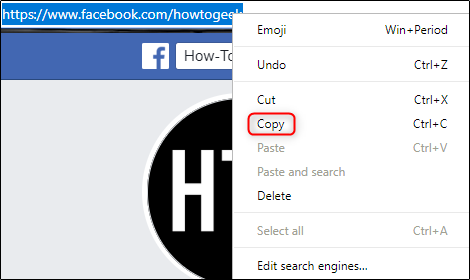
Once there, highlight the URL, right-click, and select “Copy” from the menu that appears. Alternatively, press Ctrl+C.

Copy URL

Read the remaining 21 paragraphs


Source: How-To Geek
Dress Code Guide: What Does Business Casual Mean?

How to Update Google Chrome

chrome logo

Google updates Chrome with major new versions every six weeks and security patches more often than that. Chrome normally downloads updates automatically but won’t automatically restart to install them. Here’s how to immediately check for updates and install them.

RELATED: How Often Does Google Update Chrome?

How to Update Google Chrome

While Google Chrome downloads and prepares updates in the background, you still need to restart your browser to perform the installation. Because some people keep Chrome open for days—maybe even weeks—the update could be idly waiting to install, putting your computer at risk.

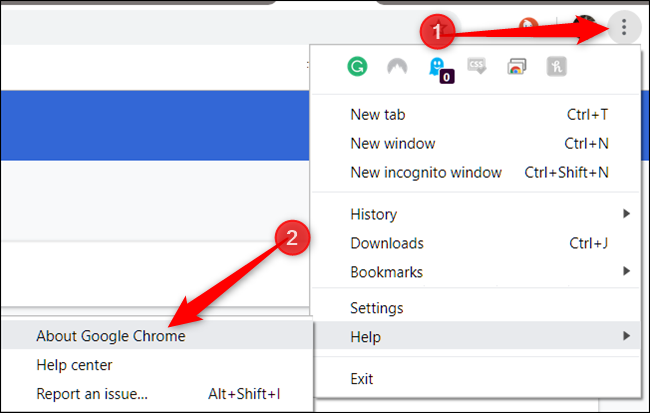
In Chrome, click menu (three dots) > Help > About Google Chrome. You can also type chrome://settings/help into Chrome’s location box and press Enter.

Click More, point to Help, then click on About Google Chrome

Chrome will check for any updates and immediately download them as soon as you open the About Google Chrome page.

If Chrome has already downloaded and is waiting to install an update, the menu icon will change to an up arrow and take on one of three colors, depending on how long the update has been available:

  • Green: An update has been available for two days
  • Orange: An update has been available for four days
  • Red: An update has been available for seven days

Google Chrome begins to update

Read the remaining 8 paragraphs


Source: How-To Geek

Kiwi Design Battery Base: A Cheap, Easy Way to Make Your Google Home Mini Mobile

How to Write an AutoHotkey Script

34 Useful Keyboard Shortcuts for the Windows Command Prompt

cmds_top

Even if you use the Windows Command Prompt a lot, you might be surprised at the number of useful keyboard shortcuts it supports. You can use them to streamline everything from selecting and manipulating text to repeating commands you’ve already typed. And we’ve got the full list for you.

The Command Prompt is a powerful tool in Windows, giving you access to all kinds of useful commands you can’t get any other way. By its very nature, the Windows Command Prompt relies on a lot of keyboard use–and with that comes handy shortcuts. Most of these shortcuts have been around since the Command Prompt’s early days. Some are new with Windows 10 (especially some of those that use the Ctrl key) and you’ll need to enable them before you can use them. When you’ve done that, you’re ready to unleash your full-fingered keyboard fury.

Shortcuts for Launching and Closing the Command Prompt

cmds_1

Windows actually boasts a number of ways to open the Command Prompt. The following list shows you some of the ways you can open and close the Command Prompt with just your keyboard:

  • Windows (or Windows+R) and then type “cmd”:  Run the Command Prompt in normal mode.
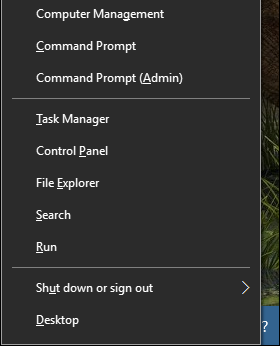
  • Win+X and then press C: Run the Command Prompt in normal mode. (New in Windows 10)
  • Win+X and then press A: Run the Command Prompt with administrative privileges. (New in Windows 10)
  • Alt+F4 (or type “exit” at the prompt): Close the Command Prompt.
  • Alt+Enter: Toggle between full-screen and windowed mode.

And while any of those ways to open the Command Prompt will work, we recommend getting used to opening it with administrative privileges. Most of the interesting commands you’ll use require it anyway.

Note: If you see PowerShell instead of Command Prompt on the Windows+X (Power Users) menu, that’s a switch that came about with the Creators Update for Windows 10. It’s very easy to switch back to showing the Command Prompt on the Power Users menu if you want, or you can give PowerShell a try. You can do pretty much everything in PowerShell that you can do in Command Prompt, plus a lot of other useful things.

Shortcuts for Moving Around

You can always click with your mouse to place the cursor anywhere you want in the Command Prompt. But if you like to keep your hands on the keys, we’ve got you covered with these shortcuts for moving around:

  • Home/End: Move the insertion point to the beginning or end of the current line (respectively).
  • Ctrl+Left/Right Arrow: Move the insertion point to the beginning of the previous or next word (respectively) on the current line.
  • Ctrl+Up/Down Arrow: Scroll the page up or down without moving the insertion point.
  • Ctrl+M: Enter or exit Mark Mode. While in mark mode, you can use all four arrow keys to move your cursor around the window. Note that you can always use the Left and Right arrow keys to move your insertion point left or right on the current line, whether Mark Mode is on or off.

Once you get used to moving around with the keyboard, you might even find it faster than switching to the mouse and back again.

Shortcuts for Selecting Text

Read the remaining 10 paragraphs


Source: How-To Geek